 PulsePom
What gets blocked
Short videos are built to keep you swiping. PulsePom blocks the feeds themselves:
- YouTube Shorts, in the YouTube app and in your browser
- Instagram Reels
- TikTok
- Facebook Reels
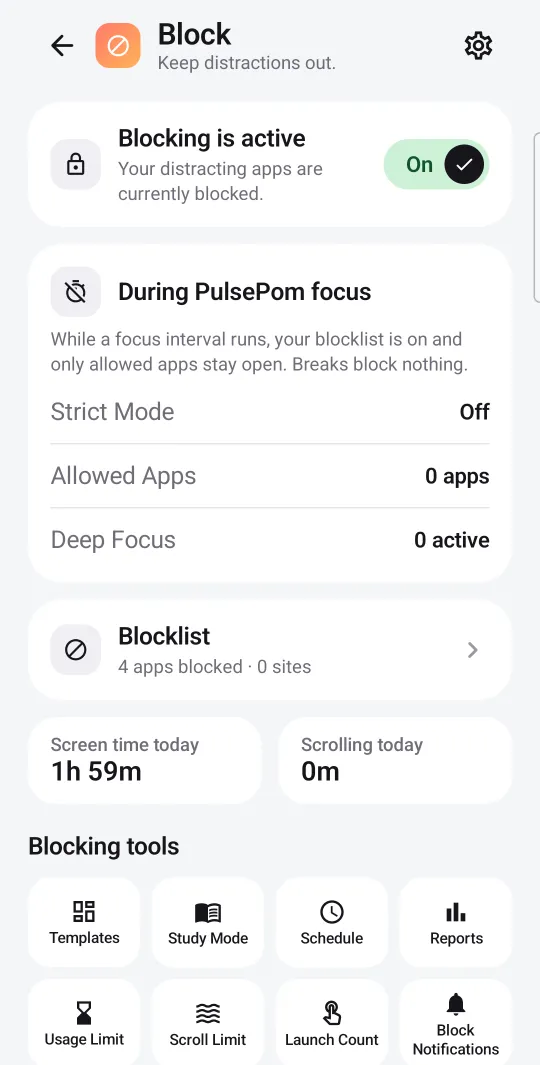
You decide when: during every focus session on PulsePom's timer, on a schedule (for example, every school night), or when a usage or scroll limit runs out. During a focus session your blocklist switches on, and breaks block nothing.
Keep YouTube for studying
Blocking Shorts doesn't have to mean losing YouTube. Turn on YouTube University and only videos that YouTube files under Education will play. Other videos are paused and closed, and Shorts stay blocked.
Set it up
- Install PulsePom from Google Play. You can sign in, free, or continue without an account.
- Allow what PulsePom asks for: Usage Access, Display over other apps and notifications.
- Open Block and turn on Shorts and Reels blocking. Short-video blocking uses Android's Accessibility Service, which stays off until you turn it on in your phone's settings.
- Start a focus session, or set a schedule or a limit.
What the blocker sees, such as which app is open, stays on your phone and is never sent to PulsePom.
Make it harder to give in
- Scroll limits: put a cap on scrolling, so a feed stops when you reach it.
- Usage and app-launch limits: cap time in an app, or how many times you open it.
- Strict Mode (opt-in): blocking can't be switched off during focus sessions.
- Study Mode: only the apps you choose can open.
- Screen-time and scroll-time reports: see where the time went.
All of these are free. See the full list of blocking features.
Honest limits
- Blocking is in the Android app only. On iPhone, Windows and Mac, PulsePom has no blocker.
- Blocking is a self-control aid, not parental control or a guaranteed content filter.
- Android asks you to allow the Accessibility Service yourself. PulsePom never turns it on for you.
FAQ
Can I block YouTube Shorts but keep regular YouTube videos?
Yes. Shorts blocking stops the Shorts feed and leaves other videos alone. If you also turn on YouTube University, only educational videos play.
Is Shorts and Reels blocking free?
Yes. Every blocking feature in PulsePom's Android app is free, with no ads and no paywall.
Does it block Shorts in the browser too?
Yes. YouTube Shorts are blocked in the YouTube app and in your browser.
Will blocking work when PulsePom is closed?
Schedules and limits keep working in the background once you have allowed the permissions PulsePom asks for. Blocking during focus follows the PulsePom timer, which keeps running with your phone locked.
Does PulsePom read my messages or what's on my screen?
What the blocker sees stays on your phone and is never sent to PulsePom. The one exception is YouTube University, which sends video titles and channel names to YouTube's API to check whether a video is educational.