 PulsePom
Every blocking feature, free
Many blockers give you a few apps for free and charge for the rest. In PulsePom's Android app, all of this is free:
| Feature | What it does |
|---|---|
| App and website blocking | Block the apps and sites you choose |
| Shorts and Reels blocking | Stop YouTube Shorts, Instagram Reels, TikTok and Facebook Reels |
| YouTube University | Only educational YouTube videos play |
| Study Mode | Only the apps you allow can open |
| Strict Mode (opt-in) | Focus sessions and their blocking can't be stopped early |
| Schedule blocking | Block on the days and hours you set, including a lock-my-phone schedule |
| Usage, scroll and app-launch limits | Block once you've used your time, scrolling or opens |
| Notification blocking | Keep alerts quiet while you focus |
| Location and Wi-Fi triggers | Block automatically at school, the library or home |
| Adult-site blocking | Block adult websites in browsers |
| Split-screen and floating-window blocking | Close the gaps people use to get around a block |
| Screen-time and scroll-time reports | See where your time goes |
Made for studying, not just blocking
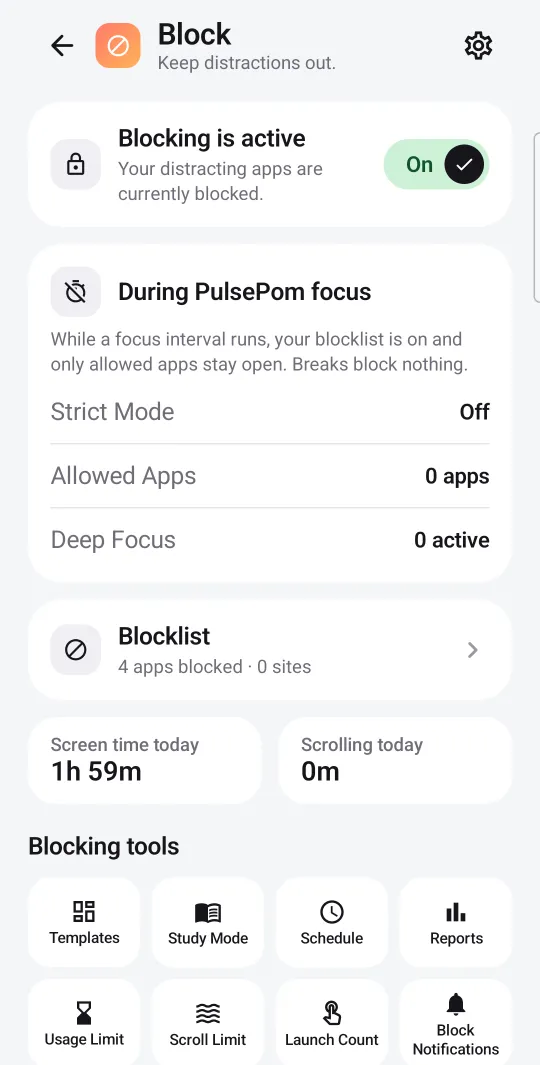
A blocker on its own tells you what you can't do. PulsePom ties blocking to your study time: start a focus session on the timer and your blocklist switches on; take a break and it switches off. Every session is saved to a subject, so your stats show the study time you protected.
You also get everything else in PulsePom: study groups, a planner, a habit tracker and stats, all free.
Set it up
- Install PulsePom from Google Play. Sign in, free, or continue without an account: blocking works either way.
- Allow Usage Access, Display over other apps and notifications when PulsePom asks. Allowed Apps and Strict Mode work with the first two.
- Most other blocking uses Android's Accessibility Service, which stays off until you turn it on. PulsePom's Block section shows you where.
- Add apps and sites to your blocklist, then choose when to block: during focus, on a schedule or with limits.
Your privacy
What the blocker sees, such as which app is open, the websites you visit, your notifications and your location for triggers, stays on your phone and is never sent to PulsePom. The one exception is YouTube University, which sends video titles and channel names to YouTube's API to check whether a video is educational.
Honest limits
- Blocking is in the Android app only. iPhone, Windows and Mac have no PulsePom blocker.
- It is a self-control aid, not parental control or a guaranteed content filter.
- PulsePom never stops you from uninstalling it. Strict Mode makes giving in harder, not impossible.
FAQ
Is PulsePom's app blocker really free?
Yes. Every blocking feature in the Android app is free, with no ads and no paywall. PulsePom's optional Premium plan is only for the AI study coach and Calendar Pro.
Do I need an account to block apps?
No. Blocking works whether you sign in or continue without an account.
Can I block apps only while I study?
Yes. Turn on blocking during focus, and your blocklist switches on whenever a focus session runs on PulsePom's timer and off during breaks.
Can I block apps at school or in the library?
Yes. Location and Wi-Fi triggers start blocking when you arrive at a place or join a Wi-Fi network you choose.
Why does PulsePom need the Accessibility Service?
Android only lets an app see which app or website is open through the Accessibility Service. PulsePom uses it to block, keeps what it sees on your phone, and leaves it off until you turn it on.